SharePoint Survey Webpart

Overview
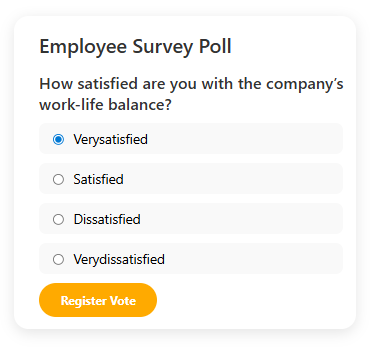
The Employee Survey Web Part is a modern SharePoint Framework (SPFx) component designed to promote employee engagement, gather valuable feedback, and strengthen organizational culture through interactive polls and surveys directly within your intranet.
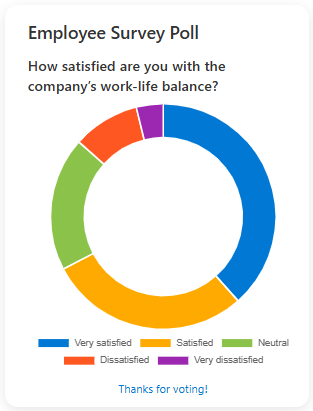
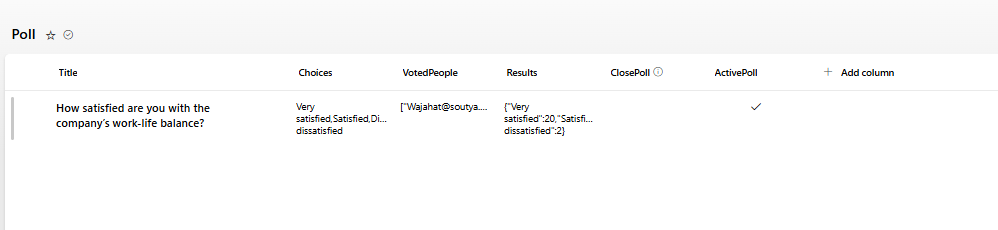
This web part dynamically retrieves survey questions and options from a SharePoint list, allowing HR and management teams to easily create, publish, and analyze employee feedback in real time. Whether used for pulse surveys, engagement polls, or opinion tracking, it helps organizations make data-driven decisions and improve workplace satisfaction.
- Automated Data Integration: Connects directly to a SharePoint list containing survey questions, options, and responses — enabling dynamic content updates without redeploying the web part.
- Modern, Responsive Interface: Provides a clean, interactive, and mobile-friendly design optimized for quick participation and a smooth user experience.
- Real-Time Response Tracking: Displays live voting results and participation statistics with visual charts or progress indicators.
- Flexible Question Formats: Supports single-choice, multiple-choice, rating scales, and opinion-based questions to fit various HR and organizational needs.
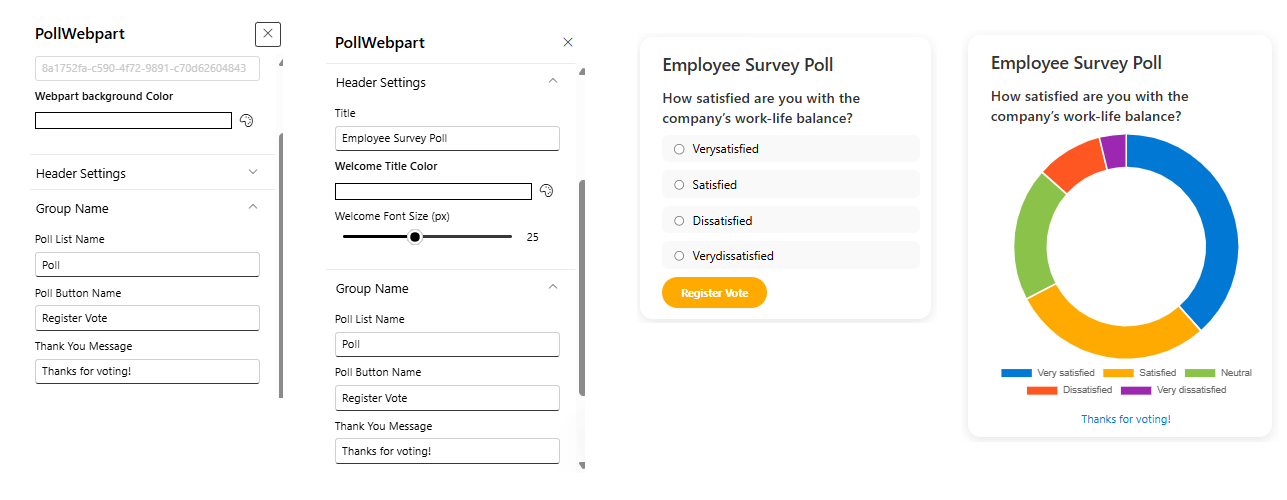
- Customizable Look & Feel: Easily adapt colors, layout, and branding elements to align with your organization’s visual identity.
- Data Analytics Ready: Integrates with Power BI or Excel for advanced survey analysis and reporting.
Ideal for HR, management, or internal communication teams, the Employee Survey Web Part empowers organizations to listen to their people, measure engagement, and act on insights — fostering a more transparent, inclusive, and connected workplace.
Product Details
- Platform: SharePoint Online (Modern Experience)
- Framework: SharePoint Framework (SPFx)
- Data Source: SharePoint List
- Integration: Utilizes PnPjs for fast, secure, and efficient data retrieval
- Layout: Modern, responsive, and visually engaging interface with animation effects
- Customization: Supports organizational branding, layout preferences, and color themes
- Performance: Optimized for minimal load time and smooth content rendering
- Support: Easy to configure, extend, and integrate with your SharePoint intranet environment
Pricing Plans
How to Install
Step 1
Contact us at info@spintranet365.com to receive the latest app package file.
Step 2
We will assist you remotely to upload and deploy the package to your SharePoint App Catalog site.
Step 3
Once deployed, we’ll help you install and configure the app on your SharePoint page for seamless integration.